
# Download Profiles
Download Profiles define the specifications of a downloaded file. Depending on the set definitions, not the original file will be downloaded, but a variant which may be downsized for web usage, converted to another file format, or complemented with a watermark. The available settings can be very specific: It can e.g. define a file's color space and color profile, change the saturation or background color, or rotate, mirror, or crop an image. But a download profile can as well say "download the original". Files can thus be made available optimally for the intended usages.
The available parameters focus on image files, but also other file types like video, audio, or pdf can be considered.
The system already comes with default download profiles original, package, print, web, and custom_download. Look for their specifications in XML here.
Users have the option to select from several profiles before downloading a file in a selection pop-up. After selecting, a copy from the original file will be downloaded with the specifications set in the selected download profile.
A file can also be downloaded with multiple profiles. Also, multiple files can be downloaded with one profile at once. Both results in the download of a zip archive.
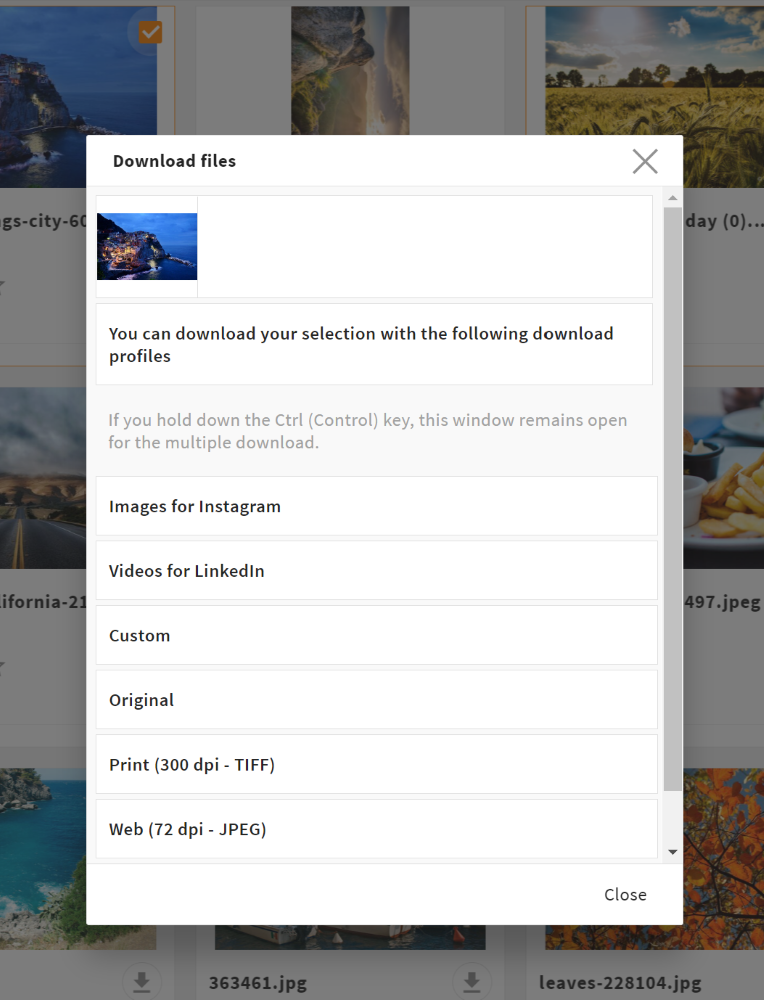
download profile selection pop-up
# User Preset
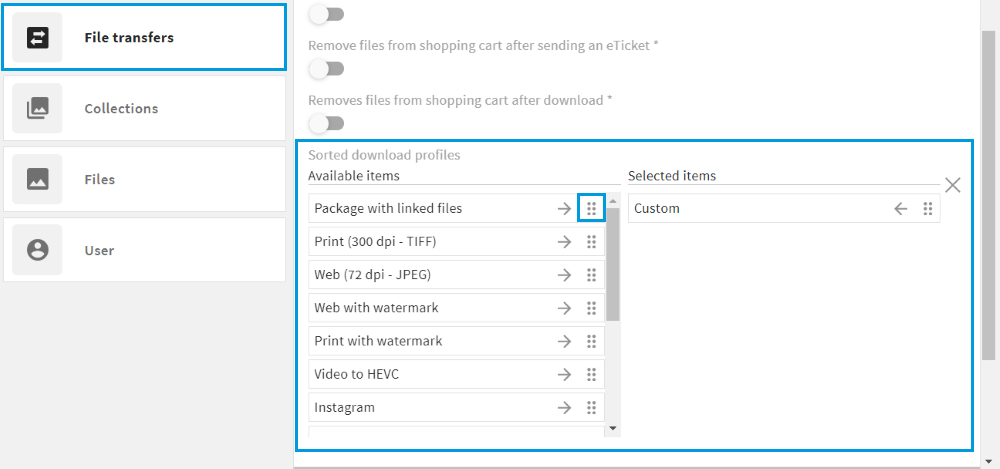
In their profile settings (panel System settings/File transfer, field "Sorted download profiles"), users can sort the display of the download profiles in the selection pop-up according to their needs.
The left list ("Available items") shows all available profiles. A profile can be dragged to the right list ("Sorted items") using the "drag" icon. All profiles in the right list will be displayed first in the selection pop-up. Here they can also be manually sorted to show the most relevant profiles higher up.
# Available Download Specifications
Depending on the intended usage of a file, a download profile can provide a file in multiple different ways. A profile can:
- convert a file's type or codec (e.g. from JPG to TIFF or from MP4 to MOV)
- transform or enhance a file (e.g. resize, crop, rotate, flip, add a transparency, frame or background color)
- make image settings required for printing (e.g. set DPI, color profile, black point compensation)
- add a watermark to a file (e.g. display a logo or copyright text)
- limit the downloaded content (e.g. select only specific pages or layers)
- edit a file's metadata (e.g. deliver or set IPTC data, or strip specific metadata)
- contain conditions for its usage (e.g. restrict it to a specific role or file type)
All available parameters can be set and combined in admin snap-in DAM/Download Profiles. Here you can edit, create and configure download profiles.
Tools Used for Conversion
For the scaling and conversion of files, third party tools ImageMagick (image) and FFmpeg (audio & video) are used. Please refer their documentation for detailed descriptions, if required.
ImageMagick
FFmpeg
# Download Profile Admin Snap-in
In admin-snap-in DAM/Download Profiles you can edit existing download profiles (e.g., the default profiles) and create and configure new ones.
Open an existing profile to see its specifications and to edit it. Click "Create" to create a custom download profile.
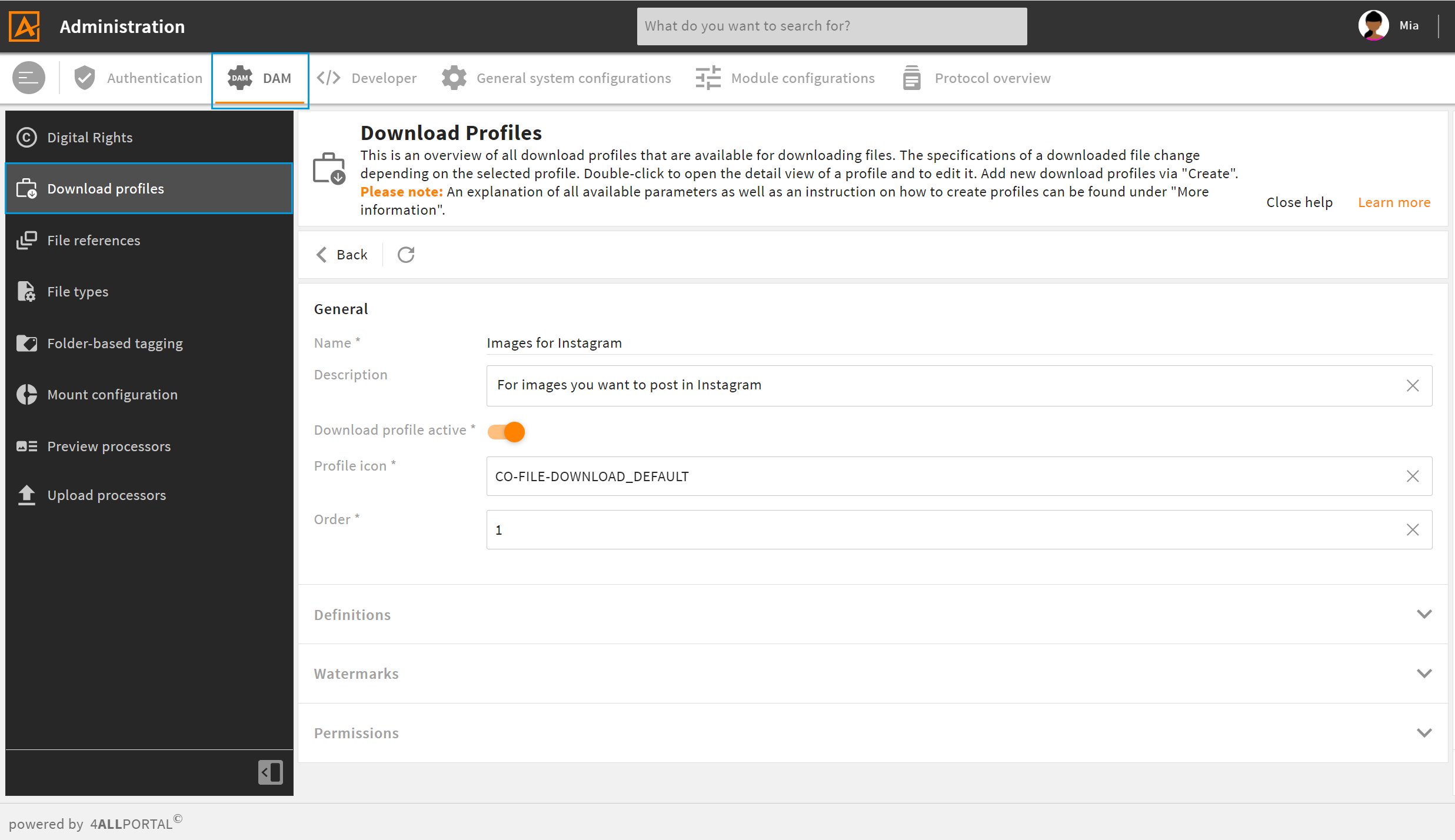
In a download profile's settings, you have the following panels to configure:
After editing/creating and saving a download profile, you need to clear the configuration cache to activate your changes.
# General Settings
Here you can give general information for a download profile and enable/disable it.
| Name | Description | Expected Value Example |
|---|---|---|
| Name * | Enter a name for this profile. It will be used in the selection pop-up. It should summarize what this profile does or when it should be selected. Please note the naming limitations below. | Images for Instagram |
| Description | Add a description or usage definition for this profile. | For images you want to post in Instagram |
| Download profile active | If enabled, the download profile will appear in the system and can be selected by users. | true/false |
| Profile icon * | Enter the name of an icon here. It will be used when this profile is displayed as an action (default: "CO-FILE-DOWNLOAD_DEFAULT"). | CO-FILE-DOWNLOAD_DEFAULT |
| Order * | Sets the rank within the list of all profiles (default: 0). The lower the number, the further up in lists of download profiles. "0" is inserted below all other numbers. If profiles have the same value, they are sorted alphabetically. | 1 |
* = required field
Naming Limitations
You are not allowed to use reserved profile names (e.g. "pdf" or "small") for your download profile. Using these preset names may cause problems when generating derivatives and previews.
# Definitions
In the definitions, you can set the parameters for the actual generation of the files downloaded with this profile.
In field "Convert directives", you can add multiple specifications and settings for the target files.
Color as a Name
In some fields, you can define a color via name, integer or hex value. When using a name, only certain colors are supported. Please refer the Java Class Color information here (opens new window).
| Name | Description | Expected Value Example |
|---|---|---|
| Content disposition | Defines how a file is processed by the browser. |
|
| Cache directive * | Defines whether files should always be newly created or retrieved from the cache/"cefs" folder when a request is made. |
|
| Cache eviction in days | Defines after how many days the cache is emptied (minimum: "1"). Only for "On demand with caching" (it's required then). | integer value 30 |
| Max number of cached files | Defines the maximum number of variants that are kept in the cache per file (default: 10). If exceeded, the oldest files are deleted. Only for "Cache eviction in days" | integer value 5 |
| Allow external file | Advanced. If enabled, the cache is searched for a precalculated file for the requested file. The precalculated file is downloaded without further converting. Only for "On demand with caching" | true/false |
| Output mimetype | Defines a file format if you want to convert the target file to this format (default if not set: Original). Further information and limitation | Mimetype from dropdown JPEG |
| Max width or height (resize) | Defines a maximum value for the width or height of an image or video file (not available for "Original"). Alternative parameters: "Width" and "Height". | Images: pixel per inch
|
| DPI (density) | Defines the horizontal and vertical pixel density of an image without changing its size (relevant for printing). Only for image files. | pixel per inch 72 |
| Color space | Defines the color space for images. |
|
| Color profile | Defines a corresponding color profile for the selected color space. The profiles shown in the dropdown are color space dependent. | Color profile from dropdown Adobe RGB (1998) |
| Quality | Defines the quality of an image (only JPEG supported) or video. |
|
| Strip metadata | Defines which metadata should be removed before downloading a file (color profiles, comments, PNG chunks). Without specification: None Exceptions can be defined via parameter "Convert directives", key "Strip exclusions". |
|
| Output filename | Changes/complements the file name of the target file, if another than the original name is required. Template Engine variables are supported. | actual name or Template Engine variable {name} {$friendlyname.compress(12)} 4ALLPORTAL-Download |
| Convert directives | Defines optional parameters to convert a file before downloading. Multiple parameters can be combined, e.g. to resize, crop or mirror a file. Here, commands from ImageMagic or FFmpeg are used. | All supported conversion options |
| Embedded metadata | Defines EXIF, IPTC or XMP metadata and a corresponding value that should be embedded in the target file. | Metadata key from dropdown and value to embed Keywords (IPTC:Keywords) - Summer Party |
| Collision handling * | Defines how to proceed if a file already exists in the target folder (default: Replace). |
|
| Using base preview | Advanced. If enabled, the system searches for a replacement file (prev_base file) for the requested file. The replacement is converted and downloaded according to the specifications of the profile. | true/false |
* = required field
# Output Mimetype
Please note: When converting a file via "Output mimetype", the system does not automatically check if the source format fits the target format. You could e.g. download a JPEG file with a download profile which converts files into MPEG. The resulting file would not open/work.
To avoid this, you can either add conditions to a download profile configuration (example) or select a meaningful name for a download profile.
# Convert Directives: Options
In field "Convert directives" you can make multiple settings to modify the original file. The conversion will apply only for the downloaded target file.
Click the "+" icon and select from the following options of the drop-down:
| Name | Description | Expected Value/Example |
|---|---|---|
| Acodec | Defines the audio codec for audio files. | name of the codec, e.g. MP3 |
| Alpha | Cuts the background off an image after cropping, alpha channels and background color and adds transparency, if possible. Further specifications possible via "Fuzz". If the output format does not support transparency, the cropped area is filled with the background color. CMYK: If you use color space CMYK, specify the background color in CMYK notation, too (e.g. cmyk(0,0,0,0) for white). |
|
| Ar | Defines the audio frequency for audio files. | integer value, e.g. 8000 |
| Autoorient | Activates the automatic rotation for image files according to their metadata. | true/false (default) |
| Background (color) | Defines the background color for image files, which is displayed e.g. for transparencies. |
|
| Background image | Defines an image placed in the background (position can be further specified via parameters "Left" and "Top") | file name or path (relative to "custom") modules/filetransfer/background-images/background_4.png |
| Black point compensation | Activates black point compensation for image files. | true/false (default) |
| Brightness | Defines the brightness of an image. | integer value from -100 to 100 |
| Compose method | Defines the method used to apply watermarks to an image. Applies to all watermarks defined for this profile. | Name of a method, e.g. HardLight (default) |
| Contrast | Defines the contrast of an image. | integer value from -100 to 100 |
| Crop | Crops an image. The target section is defined according to the expected pattern, relative (Rel) to the page size. | <RelLeft>x<RelTop>x<RelRight>x<RelBottom> relative value from 0 to 1, e.g. to remove 20 px from 1000 px: 20/1000 = 0,02 0.02x0.02x0.02x0.02 |
| Depth | Defines the colour depth of an image. | bits: 1, 8, or 16 |
| Dimension | Defines the number of video frames that are placed next to and below each other to download a preview image of the video Only for video files. | integer value 2 (pattern of two rows with two tiles each) |
| DistortSRT | Defines the rotation around the center or a defined location of the image (Scale-Rotate-Translate). | integer value, e.g. -110 |
| Duration | Defines the duration of a video or audio. The starting point can be defined via parameter "Seek". | seconds (can be specified with a decimal point) 60 |
| Extent | Extends an image file to the specified size without scaling. If the image is smaller than the specified size, unfilled areas are set to "Background color". If the image is bigger than the specified size, it will be cropped. To position the image, use parameter "Gravity" (default: center). |
|
| Flatten | Images: Merges all existing layers into one layer. PDFs: Deletes all form fields or fills them with a predefined value (if available). | true/false |
| Flip | Mirrors an image vertically. | true/false |
| Flop | Mirrors an image horizontally. | true/false |
| Form | Brings an image into the shape defined here (supported: "q" for square). | q |
| Frame | Defines one frame that is downloaded from a video file (in relation to "Seek"). Only for video files. | seconds (can be specified with a decimal point) 20.5 |
| Fuzz | Defines a color deviation to ignore color differences (e.g. in combination with the removal of similar colors via parameter "Alpha"). Colors within the set distance are considered equal. | percent (1 to 100) 10% |
| Gravity | Defines the position from which an image section is taken. Can be used e.g. for parameter "Extent". |
|
| Height | Defines the maximum height of the downloaded image file. | pixel, e.g. 600 |
| Intent | Defines the rendering intent (intensity of colors) for the color management of image files. |
|
| IPTC | Enables the mapping of IPTC metadata for image files via JSON. | comma-separated JSON map "IPTC:CopyrightNotice":"©4ALLPORTAL", "IPTC:Author":"{author}" |
| Layer | Defines the first layer to be taken into account for the download, relevant e.g. for InDesign files. | explicit layer number, e.g. 3 |
| Left (Background image) | Defines the distance of the background image to the left side of the target image. Only for "Background image". | pixel, e.g. 50 |
| Mode | Defines the mode with which the downloads are generated. |
|
| Options | Additional options for converting images or documents, e.g. "switchToJpegIfNotTransparent". | all supported additional options |
| Page | Defines the page(s) to be downloaded (only for multi-page documents like PDFs). | explicit page number(s), e.g. 1 or 3-10 |
| Profile | Embeds the specified output colour profile for images or profile for videos. | File name or path (relative to "custom") global/icc/custom_profile_1.icc main10 |
| Proportional | Activates the proportional scaling of image files in relation to the target size. | true (default)/false |
| Ratio | Minifies or magnifies the watermark set here in relation to the image size | percent (1 to 100) 25% |
| Resample | Converts the image to the specified horizontal x vertical resolution (pixel density). | pixel, e.g. 300x300 |
| Rotate | Defines the angle by which an image is rotated. | integer value (-360 to 360), e.g. -180 |
| Saturation | Defines the saturation of an image. | integer value (-100 to 100), e.g. -20 |
| Seek | Defines the starting point of a video or audio file. The length can be defined via parameter "Duration". | seconds (can be specified with a decimal point) 10.0 |
| Strip exclusions | Defines exceptions for parameter "Strip metadata", if set. | comma- or semicolon-separated list ICC_Profile:{profile},-XResolution,-YResolution,-ResolutionUnit,-Orientation" |
| Threshold | Defines the threshold value for dividing an image into black and white areas | percent (1 to 100) 5% |
| Top | Defines the distance of the background image to the top side of the target image. Only for "Background image". | pixel, e.g. 50 |
| Vcodec | Defines the video codec for video files. | name of the codec, e.g. HEVC |
| Vr | Defines the video frequency for video files (frames per second). | integer value 30 |
| Watermark | Defines one watermark (image) for image files. Expected is a Advanced watermark settings can be made in panel Watermarks. | File name or path (relative to "custom") modules/filetransfer/watermark-images/watermark_1.png |
| Width | Defines the maximum width of the downloaded image file. | pixel, e.g. 1200 |
| XMP | Enables the mapping of XMP metadata for image files via JSON. | comma-separated JSON map "FileOriginalID":"{id}", "FileOriginalName":"{name}" |
| XMP namespace | Defines the XMP namespace. | xmpCM4AP (default) |
| XMP prefix | Defines the XMP group prefix. | XMP- (default) |
# Additional Options for Converting Images and PDF
In field "Convert directives", you can make additional settings for converting images or PDF documents. In field "Key", select "Options" from the dropdown. In field "Value", you can add one of the following:
Images:
switchToJpegIfNotTransparentIf the input image does not contain any transparency (alpha mask or clipping path), the output image is converted to JPEG.doNotUseEmbeddedImage[=<mimetype(s)>]This prevents using an embedded image for the preview calculation of a RAW camera file. If mimetypes are specified, the prevention will only apply to the specified mimetypes (e.g.doNotUseEmbeddedImage=image/x-adobe-dng).
PDFs:
- format=<format>
- supported formats:
PDF_A_1A,PDF_A_1B,PDF_A_2A,PDF_A_3A,PDF_A_2B,PDF_A_2U,PDF_A_3B,PDF_A_3U,v_1_3,v_1_4,v_1_5,v_1_6,v_1_7,PDF_UA_1,PDF_X_1A,PDF_X_3
- supported formats:
- userpass=<user password base64 encoded>
- ownerpass=<owner password base64 encoded>
- cert=<pfx-certificate>
- certpass=<certificate password base64 encoded>
- certpass=<certificate password base64 encoded>
Tip You can combine options by adding them separated by commas.
# Watermarks
In panel "Watermarks" you can add one or more watermarks to a downloaded file. Here, both image and text are supported. One download profile can also contain multiple watermarks, e.g. a logo and copyright information (example for multiple watermarks). Each element requires a separate configuration.
Images If you select an image as a watermark, only five parameters from the dropdown are supported:
- Input (path to the image)
- Scale
- Tile
- Gravity
- Padding
In the snap-in, click the "+" icon to create a new watermark. Click the "+" icon below "Key" to define a watermark's specifications:
| Name | Description | Expected Value/Example |
|---|---|---|
| Background color | Defines a background color for the watermark. |
|
| Background fill | Activates the filling of the background with the color defined in "Background color". | true/false |
| Border color | Adds a colored border to the downloaded file. Only for text using "Template body" (more information on "Border"). |
|
| Border width | Defines the width of the border (default: 0). | pixel, e.g. 20 |
| Corner radius | Defines the radius of the arc with which the corners of the border are rounded (default: 0). | radius of a supposed circle, in pixel, e.g. 50 |
| Font align | Horizontal alignment of the text displayed on the result image. Only for "Template body". |
|
| Font color | Defines the font color. Only for "Template body". |
|
| Font name | Defines the font to be used (needs to be stored in the operating system or the "custom" folder). Only for "Template body". | name of a font (use hyphens, if required) e.g. arial or times-new-roman |
| Font outline color | Defines the color to outline the font. Only for "Template body". |
|
| Font size | Defines the size of the font. Only for "Template body". | point, e.g. 18 |
| Font style | Defines the style of the font. Only for "Template body". |
|
| Font valign | Vertical alignment of the text displayed on the result image. Only for "Template body". |
|
| Gravity | Defines the position from which an image section is taken. |
|
| Height | Defines the maximum height of the watermark. | pixel, e.g.1024 |
| Input | Image: Uses this image as a watermark on image files. | File name or path (relative to "custom") modules/filetransfer/watermarks/example.png |
| Padding | Defines a margin that the watermark has to the lower, upper, left and right side of the target image (default: 0). | pixel, e.g. 20 |
| Quality | Defines the quality of the watermark image. Only for type JPEG. | integer value (1 = low to 100 = high), e.g. 50 |
| Scale | Minifies or magnifies the watermark using pixel block averaging or pixel replication. | percent 20 |
| Shape | Defines the shape type of the border. |
|
| Shape color | Defines the filling color of the shape defined in "Shape". |
|
| Template body (text) | Defines the text that is displayed on an image. Template Engine variables are supported (Template Engine docs (opens new window)). | Copyright {$friendlyname.compress(12)} |
| Tile | Defines whether a watermark is automatically duplicated next to and below each other to fill the entire target image. | true/false |
| Transparency | Defines the alpha component (transparency) of the watermark. |
|
| Width | Defines the maximum width of the watermark. | pixel, e.g. 1024 |
Please note: The method with which a watermark is applied to a file, can be defined in panel "Convert Directives", field "Compose method". If not defined, the default ist "HardLight".
# Add a Border
If you want to add a border around your text (border is not supported for images), the following parameters are required:
- Template body
- Border color
- Border width
- Shape
- Height
- Width
The following watermark configuration adds a prominent copyright with a border:
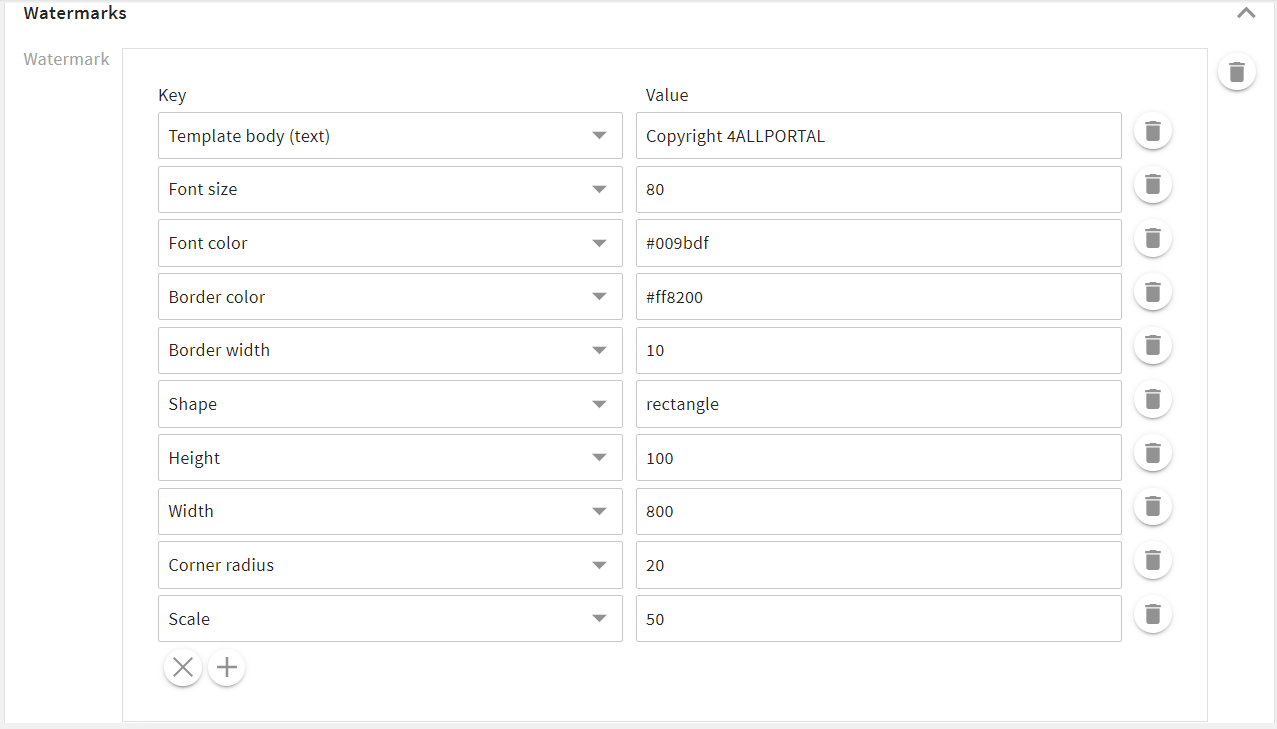
Result on a downloaded image:

# Multiple Watermarks
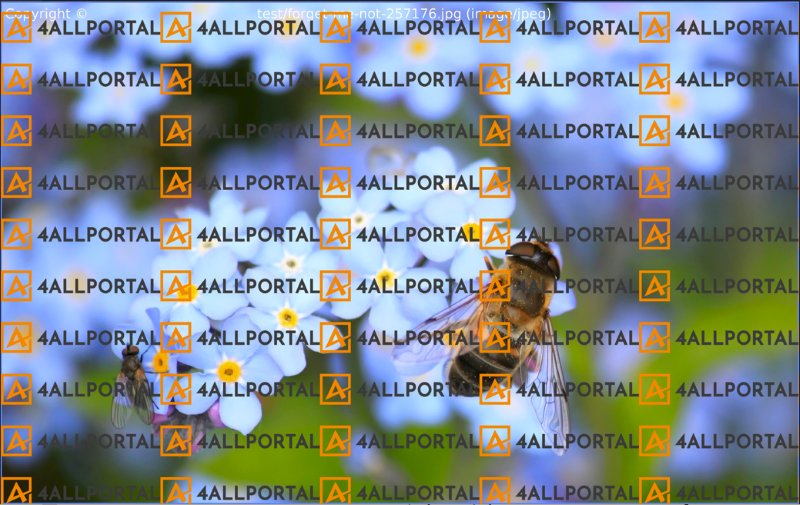
The following watermark configurations combine two texts and one image:
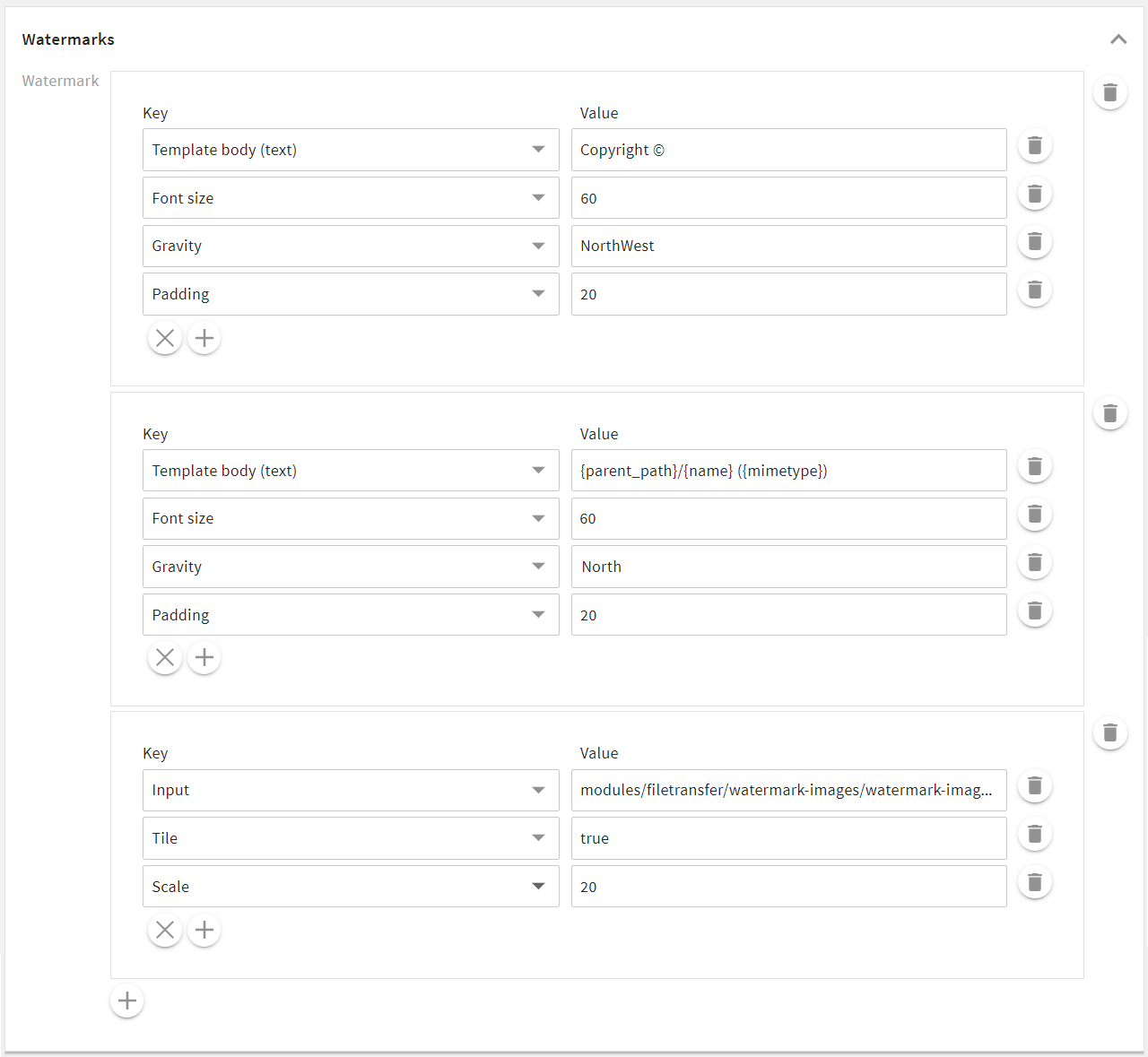
Result on a downloaded image:
# Permissions
In panel "Permissions" you have the option to limit the usage of this download profile, e.g., to make it available for certain roles or certain file types only.
| Name | Description | Expected Values/Example |
|---|---|---|
| Permission type * | For download profiles always: "Read" |
|
| Visibility (views) | Defines the visibility of the action for this download profile. Available views: main, detail, subpanel, current cart |
|
| Allowed roles | If you want only certain roles to see this profile, select them here. If no role is selected, all can see this profile. | Marketing |
| Conditions | Extends this profile with custom conditions (XML or JSON), e.g. to limit a profile to a certain mimetype. | Condition example |
| Additional parameters (output) | For download profiles, only key "output" is supported. With "output", you can customize the name/structure of the target folder, if an archive is downloaded. |
|
* = required field
# Condition Example
The download profile configuration can be extended by conditions. They are evaluated in the same way as conditional operations.
In the following example from default download profile "Print", the condition for displaying the download profile is the file to be downloaded is of type "image":
   <conditions>
      <condition>
         <value1 type="field">
            <value>type</value>
         </value1>
         <operator>equal</operator>
         <value2 type="value">
            <value>image</value>
      </value2>
      </condition>
   </conditions>
# Additional Parameters
Via "Additional parameters", you can determine the name of the archive folder, if more than one file is downloaded with this profile. In field "Key", enter parameter "Output". In field "Value", you can add a name and/or a Template Engine function:
Instagram/{base_name}.{target_extension}
or
{derivate_type}/{base_name}{if base_extension.length() > 0}.{base_extension}{/if}
Supported variables are:
derivate_type: name of the download profile, e.g. web, print, etc.base_name: name of the file without extensionbase_extension: extension of the original filetarget_extension: file extension of the target file (depends on the filetype of the download profile)- all properties (i.e. metadata) of a file, e.g.
created_by,created_time,id.
# Examples
In the following examples, the download profile configuration is followed by an example image downloaded with it.
# Converting: Resizing and Background
Configuration:
| Parameter | Value |
|---|---|
| Output mimetype | JPEG |
| Max width or height (resize) | 1200 |
| Background (color) | #ff8200 |
| Extent | 1200x1000 |
| Gravity | center |
Result:

# Converting: Video to HEVC
Configuration:
| Parameter | Value |
|---|---|
| Outut mimetype | MP4 or MOV (Quicktime) or MKV (Matroska) |
| Vcodec | hevc |
| Profile | main or main10 |
In panel "Permissions", field "Condition", you can limit this profile to be displayed only for video files:
 <condition>
    <value1 type="field">
      <value>type</value>
    </value1>
    <operator>equal</operator>
    <value2 type="value">
      <value>video</value>
    </value2>
  </condition>
Result:
As a result, a video file is converted to the defined filetype with video codec HEVC (also known as H.265 and MPEG-H Part 2) before downloading.
# Technical Background
# XML Structure and Storage
Each download profile is stored in an extra folder: modules/filetransfer/filetransfer/{name}. In it, XML file default.4apobjimg is stored with the configured specifications.
Custom profiles are stored in the equivalent path of the custom folder.
For XML examples, compare the default profiles explanations here.
# Object Image Service and Derivate Service
In the 4ALLPORTAL, the creation of download files according to download profiles and the creation of file previews are done by the object image service and the derivate service. The managing of requested downloads is processed by module Filetransfer.
The ObjectImageService (OIS) is a native Core Engine module and provides basic functions for all Core Engine modules. It is responsible for the delivery and management of image content and used for the following processes:
- image delivery
- preview calculation
- previews generation (either based on uploaded files or automatically)
- an event generation allows processes to be captured and processed via events
The Derivateservice is a backend process performing all 4ALLPORTAL file and document processing, such as preview generation or download generation, e.g. downsizing an image according to a selected download profile. It thus executes the instructions it gets from the Object Image Service, using third party tools like FFmpeg.
Module Filetransfer is a Core Engine module bound to DAM module "Files". It serves as an interface for the handling of files or file derivatives. This results in the following task groups:
- File import (upload)
- File export (download, quick download, eTicket)
Further Documentation
# Reference: Default Download Profiles XML
# Original
When selecting this profile, the original file(s) without modification will be downloaded. The specifications like shown in the admin snap-in look like this in XML:
<setup>
  <allowed_shares/>
  <enabled>true</enabled>
  <info>L-V-FILE_AVAILABLE_DOWNLOAD_PROFILES-ORIGINAL-INFO</info>
  <label>L-V-FILE_AVAILABLE_DOWNLOAD_PROFILES-ORIGINAL</label>
  <max_beans>-1</max_beans>
  <min_beans>1</min_beans>
  <name>original</name>
  <order>2</order>
  <views>
    <view visible="false">main</view>
    <view visible="false">detail</view>
    <view visible="false">subpanel</view>
    <view visible="false">current_cart</view>
  </views>
  <visible>true</visible>
  <icon>CO-FILE-DOWNLOAD_DEFAULT</icon>
  <cache_control>on_demand</cache_control>
  <content_disposition>attachment</content_disposition>
  <definitions>
    <entry class="string" key="mode">copy</entry>
    <entry class="string" key="collisionHandling">1</entry>
  </definitions>
  <permission_type>read</permission_type>
  <use_prevbase>false</use_prevbase>
</setup>
# Package
When selecting this profile, the file(s) will be downloaded as original file with linked files as a zip archive. The specifications like shown in the admin snap-in look like this in XML:
<setup>
  <allowed_shares/>
  <enabled>true</enabled>
  <info>L-V-FILE_AVAILABLE_DOWNLOAD_PROFILES-PACKAGE-INFO</info>
  <label>L-V-FILE_AVAILABLE_DOWNLOAD_PROFILES-PACKAGE</label>
  <max_beans>-1</max_beans>
  <min_beans>1</min_beans>
  <name>package</name>
  <order>3</order>
  <views>
    <view visible="false">main</view>
    <view visible="false">detail</view>
    <view visible="false">subpanel</view>
    <view visible="false">current_cart</view>
  </views>
  <visible>true</visible>
  <icon>CO-FILE-DOWNLOAD_DEFAULT</icon>
  <conditions>
    <condition operator="and">
      <group>default</group>
      <operator>is not</operator>
      <value1 type="field">
        <value>file_markup_parent_file.item</value>
      </value1>
      <value2 type="value">
        <value></value>
      </value2>
    </condition>
  </conditions>
  <cache_control>on_demand</cache_control>
  <content_disposition>attachment</content_disposition>
  <definitions>
    <entry class="string" key="mode">package</entry>
    <entry class="string" key="metadata">{file_metadata}</entry>
    <entry class="string" key="collisionHandling">1</entry>
  </definitions>
  <external>true</external>
  <fallback_image>global/defaults/object_image/fallback_images/large.default.png</fallback_image>
  <permission_type>read</permission_type>
  <use_prevbase>false</use_prevbase>
</setup>
# Print (300 dpi - TIFF)
When selecting this profile, the file(s) will be downloaded optimized for a print usage (TIFF, 300 dpi resolution, 6000 pixels maximum - landscape or portrait, CoatedFOGRA39.icc). The specifications like shown in the admin snap-in look like this in XML:
<setup>
  <allowed_shares/>
  <enabled>true</enabled>
  <info>L-V-FILE_AVAILABLE_DOWNLOAD_PROFILES-PRINT-INFO</info>
  <label>L-V-FILE_AVAILABLE_DOWNLOAD_PROFILES-PRINT</label>
  <max_beans>-1</max_beans>
  <min_beans>1</min_beans>
  <name>print</name>
  <order>4</order>
  <views>
    <view visible="false">main</view>
    <view visible="false">detail</view>
    <view visible="false">subpanel</view>
    <view visible="false">current_cart</view>
  </views>
  <visible>true</visible>
  <icon>CO-FILE-DOWNLOAD_DEFAULT</icon>
  <conditions>
    <condition operator="and">
      <group>default</group>
      <operator>=</operator>
      <value1 type="field">
        <value>type</value>
      </value1>
      <value2 type="value">
        <value>image</value>
      </value2>
    </condition>
  </conditions>
  <cache_control>on_demand</cache_control>
  <content_disposition>attachment</content_disposition>
  <definitions>
    <entry class="string" key="flatten">true</entry>
    <entry class="string" key="resize">6000</entry>
    <entry class="string" key="density">300</entry>
    <entry class="string" key="colorspace">CMYK</entry>
    <entry class="string" key="profile">CoatedFOGRA39.icc</entry>
    <entry class="string" key="collisionHandling">1</entry>
  </definitions>
  <filetype>image/tiff</filetype>
  <permission_type>read</permission_type>
  <use_prevbase>false</use_prevbase>
</setup>
# Web (72 dpi - JPEG)
When selecting this profile, the file(s) will be downloaded optimized for a web usage (JPEG, 72 dpi resolution, 1000 pixels maximum - landscape or portrait,sRGB Profile.icc). The specifications like shown in the admin snap-in look like this in XML:
<setup>
  <allowed_shares/>
  <enabled>true</enabled>
  <info>L-V-FILE_AVAILABLE_DOWNLOAD_PROFILES-WEB-INFO</info>
  <label>L-V-FILE_AVAILABLE_DOWNLOAD_PROFILES-WEB</label>
  <max_beans>-1</max_beans>
  <min_beans>1</min_beans>
  <name>web</name>
  <order>5</order>
  <views>
    <view visible="false">main</view>
    <view visible="false">detail</view>
    <view visible="false">subpanel</view>
    <view visible="false">current_cart</view>
  </views>
  <visible>true</visible>
  <icon>CO-FILE-DOWNLOAD_DEFAULT</icon>
  <conditions>
    <condition operator="and">
      <group>default</group>
      <operator>=</operator>
      <value1 type="field">
        <value>type</value>
      </value1>
      <value2 type="value">
        <value>image</value>
      </value2>
    </condition>
  </conditions>
  <cache_control>on_demand</cache_control>
  <content_disposition>attachment</content_disposition>
  <definitions>
    <entry class="string" key="resize">1000</entry>
    <entry class="string" key="density">72</entry>
    <entry class="string" key="colorspace">RGB</entry>
    <entry class="string" key="quality">80</entry>
    <entry class="string" key="profile">sRGB Profile.icc</entry>
    <entry class="string" key="collisionHandling">1</entry>
  </definitions>
  <filetype>image/jpeg</filetype>
  <permission_type>read</permission_type>
  <use_prevbase>false</use_prevbase>
</setup>
# Custom_Download
This download profile is only available for image files and can only be selected for single files. When selecting this profile, the image editor opens and users can edit this file according to their needs before downloading. The specifications like shown in the admin snap-in look like this in XML:
<setup>
  <allowed_shares/>
  <enabled>true</enabled>
  <info>L-V-FILE_AVAILABLE_DOWNLOAD_PROFILES-CUSTOM_DOWNLOAD-INFO</info>
  <label>L-V-FILE_AVAILABLE_DOWNLOAD_PROFILES-CUSTOM_DOWNLOAD</label>
  <max_beans>1</max_beans>
  <min_beans>1</min_beans>
  <name>custom_download</name>
  <order>1</order>
  <views>
    <view visible="false">main</view>
    <view visible="false">detail</view>
    <view visible="false">subpanel</view>
    <view visible="false">current_cart</view>
  </views>
  <visible>true</visible>
  <icon>CO-FILE-DOWNLOAD_DEFAULT</icon>
  <conditions>
    <condition operator="and">
      <group>default</group>
      <operator>=</operator>
      <value1 type="field">
        <value>type</value>
      </value1>
      <value2 type="value">
        <value>image</value>
      </value2>
    </condition>
  </conditions>
  <cache_control>on_demand</cache_control>
  <content_disposition>attachment</content_disposition>
  <definitions>
    <entry class="string" key="mode">copy</entry>
    <entry class="string" key="strip">true</entry>
    <entry class="string" key="collisionHandling">1</entry>
  </definitions>
  <filetype>original</filetype>
  <permission_type>read</permission_type>
  <use_prevbase>false</use_prevbase>
</setup>