
# Object Renderer Sets
When a view is requested, the corresponding .4aprenderer file from a module's metadata, search, or simple folder in the file system is delivered (e.g., the object renderer from folder "create" if a create view is requested - more details).
In a module's object renderer set, a mapping for metadata, search, and simple renderers can be done. This is always required, if you do not want the system to load the corresponding renderer stored in the filesystem, but another one, e.g. for a role specific display. The mapping from an object renderer set is then used in module independent view profiles, which are assigned directly to one or multiple roles.
No Customization Required?
Per system default, all 4ALLPORTAL standard modules come with one basic set. If you do not require any changes from the default, you do not need to make any object renderer set configurations.
How to Customize Object Renderers
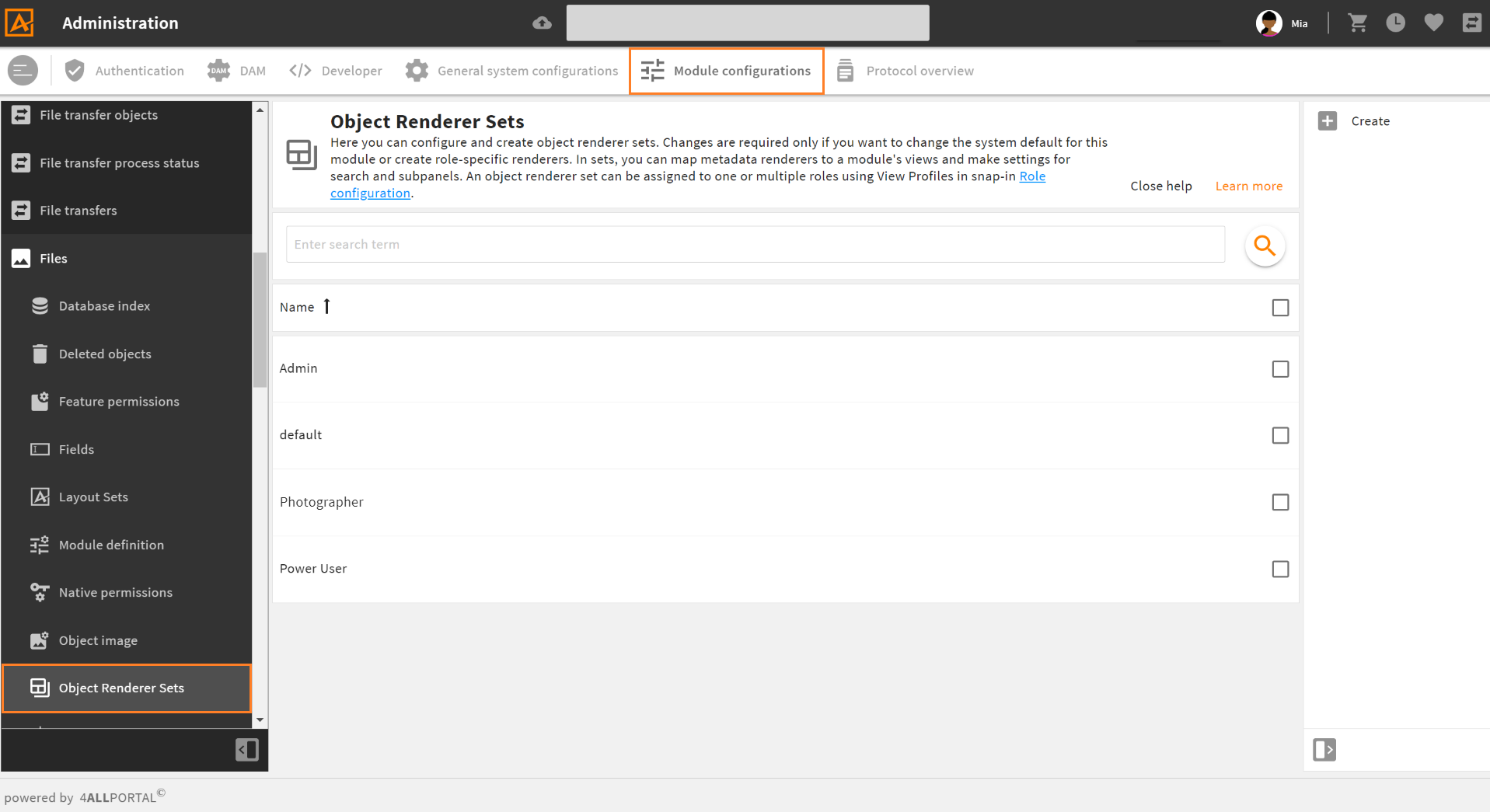
Both default set configuration and the creation of new sets is done in admin snap-in Module configuration/{module}/Object Renderer Set:
# Default Renderers and Default Set
Each module requires at least one set to serve as the default, in most cases the 4ALLPORTAL "default" set. It refers to at least one .4aprenderer file for metadata, search, and simple. For each module displayed in the GUI, the following renderers must thus always be stored in the file system:
modules/{module}/object_renderer/metadata:default.4aprenderermodules/{module}/object_renderer/search:default.4aprenderermodules/{module}/object_renderer/simple:default.4aprenderer
The object renderer set configurations are done in the Module configurations:
- snap-in
Module configuration/{module}/Object Renderer set: For each module, at least the "default" object renderer set must be defined (storage: filedefault.xmlinmodules/{module}/object_renderer_set). - snap-in
Module configuration/{module}/Module definition: For each module, oneObject Renderer Setmust be selected. It will be the module's default/fallback set.
Custom Modules and Apps
If you work with or develop custom modules or apps, make sure to make these required basic settings.
Storage
All changes you make in the settings of the default set, and all new sets you create will be stored in your custom folder (custom/modules/{module}/object_renderer_set).
# Object Renderer Set Configuration
In admin snap-in Module configuration/{module}/Object Renderer Set, you can configure a module's "default" set as well as any custom set you created.
# Object Renderer Set Properties
| Name | Description |
|---|---|
| Name | In a module, a set's name must be unique. |
| Description | Optional description, e.g., to define what role(s) this set is designed for. |
| Rank | If a module has more than one object render set and both are assigned in a view profile, this rank defines what set will apply. |
# Object Renderer Set for Metadata
Defines the mapping from views to renderers.
Only if required, you can map the requested views of this module to (role) specific metadata renderers. If no mapping is done here, the view is requested from the corresponding folder in the file system by default.
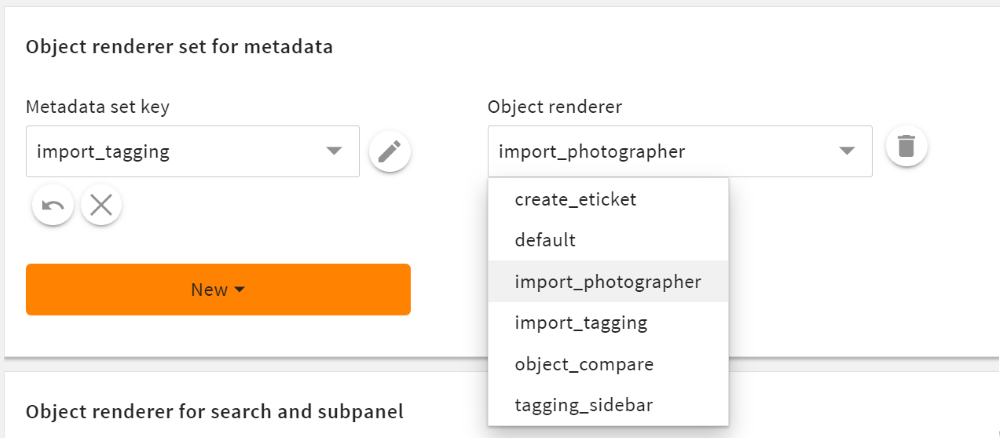
Custom object renderer set "Photographer" with mapping to a custom renderer for view "import_tagging" in module "Files"
| Name | Description |
|---|---|
| Metadata set key | A requested view from this module. Is mapped to the assigned object renderer on the right. |
| Object renderer | The renderer loaded for the defined view on the left. The object renderer drop-down offers all renderers stored in folder {module}/object_renderer/metadata. |
| New | If you have further/custom views you want to assign a specific renderer to. |
Please note: Every object renderer assigned in a module can include an object type mapping.
# Object Renderer for Search and Subpanel
Defines this module's standard search and the display of search results, as well as the display of this module's objects in subpanels.
Click the cog wheel next to "default" to configure the default settings in panel "Search" and "Subpanel".
"New" is for new relations between modules (more details).
# Search Options
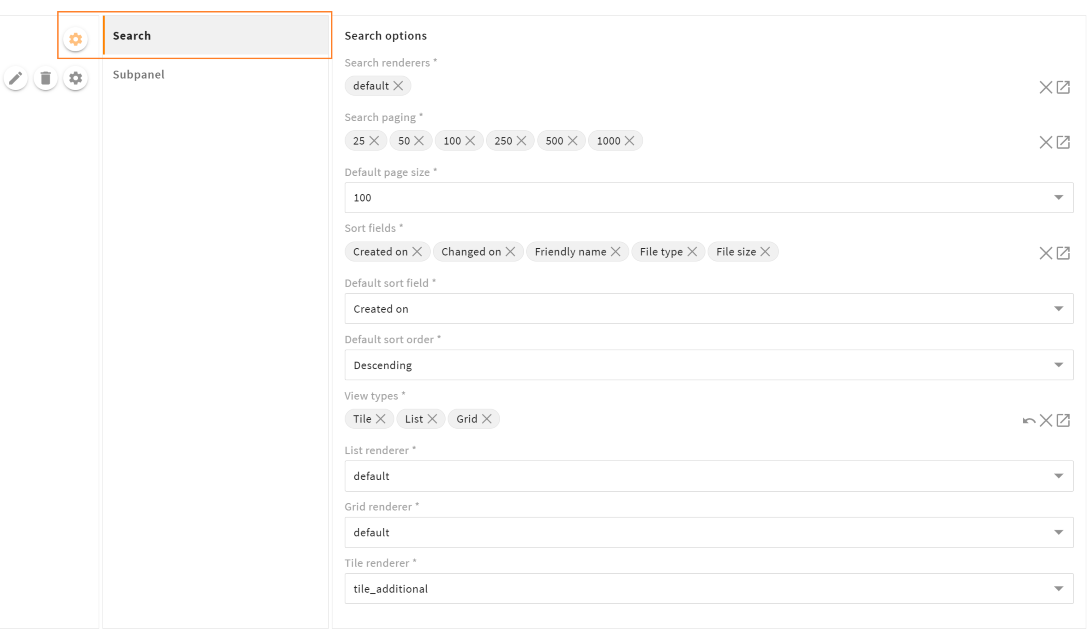
For this module's search filter configuration and the display of search results.
| Name | Description |
|---|---|
| Search renderers | Search filter: Defines what search renderers are available in this module's filter. The reference find pop-up shows all search renderers from folder modules/{module}/object_renderers/search. |
| Search paging | Search result: Defines the search paging values in the result list's header. The reference find pop-up shows the values of global value option search_paging. |
| Default page size | Search result: Defines the default number of found objects on one result page. |
| Sort fields | Search result: Defines the fields the result list can be sorted by. The reference find pop-up shows all fields of a module. Please note: List-fields are not supported and should not be added here. |
| Default sort field | Search result: Defines the default sort field of your result list (needs to be selected in "Sort fields"). |
| Default sort order | Search result: Defines the default sort order of your result list. The drop-down refers to global value option sort_order. |
| View types | Search result: Defines the view types that can be selected in your result list's header (list, tile, grid). Each selected type required a corresponding renderer further down.The reference find pop-up shows the values of global value option result_view_types. |
| List/Tile/Grid renderer | Search result: Define the simple renderers for search results in a list/tile/grid view (needs to be selected in "View types"). |
Real-Time Search
The real-time search can be enabled/disabled for a module in snap-in Module configurations/{module}/Module definition (more details)
# Multiple Search Renderers
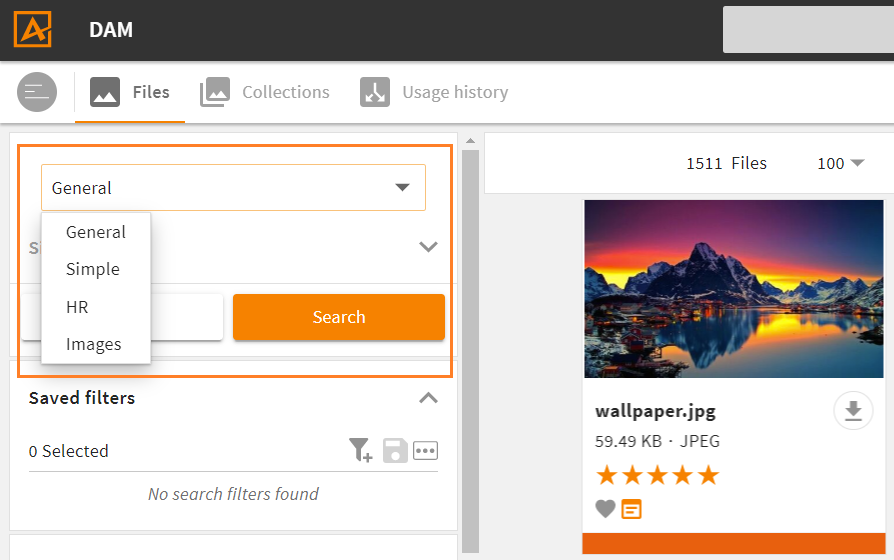
If you select multiple search renderers in field "Search renderer", a drop-down to choose from will automatically display above a module's search filter in the sidebar. You can change the renderer order in field "Search renderer" via drag 'n' drop.
Feature Permission
It is not necessary to create a feature permission for multiple search renderers, as it was in previous versions.
# Subpanel Options
For the display of this module's objects when referenced in another module (e.g. subpanel "Contacts" in module "Companies").
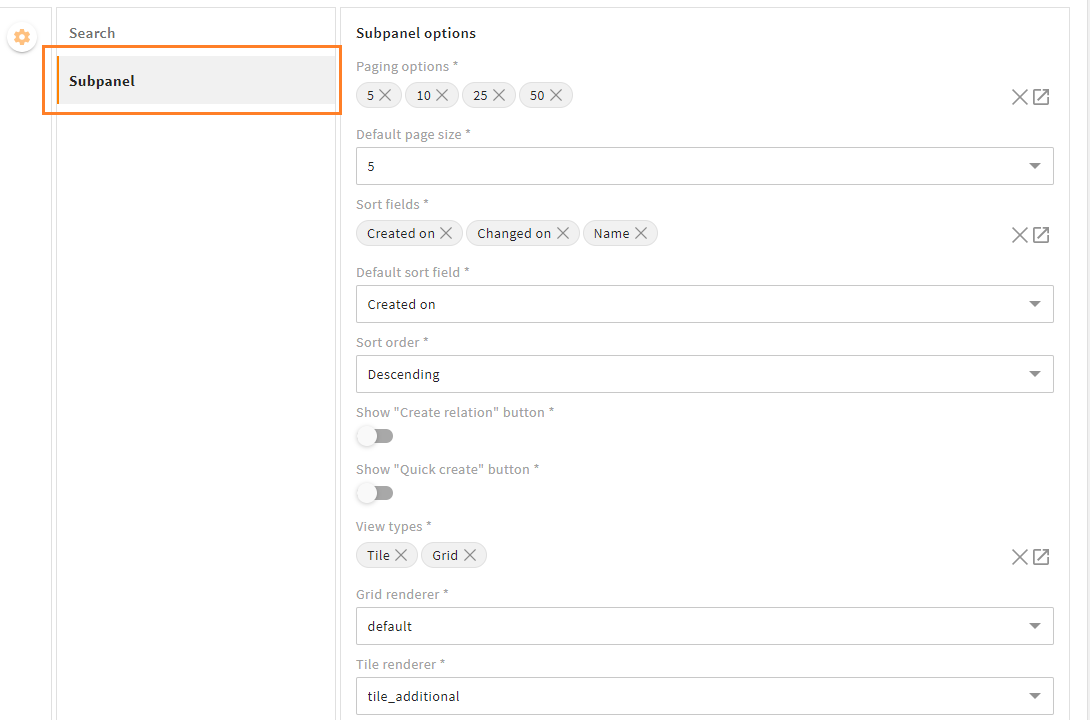
| Name | Description |
|---|---|
| Paging options | Defines the paging options you want to offer in your subpanel result list's footer. The reference find pop-up shows the values of global value option subpanel_paging. |
| Default page size | Defines the default of displayed objects on one subpanel result page. |
| Sort fields | Defines the fields the subpanel result list can be sorted by. The reference find pop-up shows all fields of a module. Please note: List-fields are not supported and should not be added here. |
| Default sort field | Defines the default sort field of your subpanel result list (needs to be selected in "Sort fields"). |
| Sort order | Defines the default sort order of your subpanel result list. The drop-down refers to global value option sort_order. |
| Show create relation button | If set to "true", the "Create relation" button shows in the subpanel's lower left corner. A click will open a referencefind pop-up to this module. |
| Show quick create button | If set to "true", the "Quick create" button shows in the subpanel's lower left corner. A click will open the create pop-up of this module. |
| View types | Defines the view types that can be selected in your subpanel result list's footer (list, tile, grid). Each selected type required a corresponding renderer further down.The reference find pop-up shows the values of global value option result_view_types. |
| List/Tile/Grid renderer | Define the simple renderers for subpanel results in a list/tile/grid view (needs to be selected in "View types"). |
# Role Specific Object Renderers
With the system default, all users of all roles will see the same 4ALLPORTAL. As soon as you want to change a module's display role specific, you need to create specific renderers and assign them in a custom object renderer set. You can thus match the display to a role's needs, e.g., create relation options for admins only, or editable image metadata fields just for photographers or freelancers.
Assigning role-specific object renderers requires several steps:
- consider what you actually need for what user role
- create and store your custom object renderer with the required changes from the default in your file system
- create the required object renderer set(s) just here (details and example)
- compile the mapping for the required modules in admin snap-in
General system configurations/User settings/View Profiles - assign the view profile to a role/multiple roles in admin snap-in
General system configurations/User settings/Role Configuration
Further Documentation
# Create a Role Specific Object Renderer Set
Assume your Files module has a default metadata renderer which applies for most users. Most user roles can work with this default and need no configuration. But your photographer role users need more metadata fields to edit. They also need modification in their search options and subpanel. In this case, you need to create a new object renderer set for this role.
Please note: If your custom renderers shall apply to more than one role, only one set is required!
- Create and store all photographer specific object renderers you need in the Files module's
object_rendererfolders (storage information). - Go to admin snap-in
Module configuration/Files/Object Renderer Setand click "Create" in the toolbox. - Object renderer set properties
- Assign name and description (e.g. "Photographer")
- Assign a rank, if you plan to assign multiple Files sets to role Photographer and want this set to win (e.g. "10").
- Object renderer set for metadata
- Select the required views and map your photographer specific metadata renderers (e.g.
import_tagging_photographer) - If you work with a custom view in your layout, you can map this, too, via "Add a new value".
- Select the required views and map your photographer specific metadata renderers (e.g.
- Object renderer for search and subpanel configuration
- Search: Customize the search and simple renderers of the Files module as well as the sorting options photographer-specific (e.g., add a search renderer
image_details, make the result list searchable for a fieldphotographer, or assign an enriched tile renderertile_photographer). - Subpanel: Customize the subpanel settings (e.g., remove buttons "Create relation" and "Quick create" for photographers)
- Search: Customize the search and simple renderers of the Files module as well as the sorting options photographer-specific (e.g., add a search renderer
- Save your set and go to admin snap-in
General system configurations/User settings/View Profiles.
Next Step: Assign an Object Renderer Set to a Role
After you configured your set with role specific renderers, you can use it in view profiles. View profiles define what object renderer sets and/or layout sets of what modules should be considered. You can assign one view profile to one or multiple or all roles. View Profiles mostly fit specific use cases (e.g. "Photographers", or "Power Users").
# New Relations: Settings for Search and Subpanel
When creating a new relation between two modules, you can make the settings for the corresponding reference find pop-up and relation subpanel in both modules' object renderer set snap-ins.
Assuming a new relation "account_contact", you need to:
- go to the first module's admin snap-in
Module configuration/{module}/Object Renderer Set. - open the object renderer set, panel "Object renderer for search and subpanel".
- below "Default", click "New" and as a new value, enter the name of the relation (e.g. "account_contact").
- click the cogwheel and make your search and subpanel settings:
- The subpanel settings will apply for the subpanel appearing in the reference module. It contains this module's contents.
- The search settings will apply to the reference find pop-up that opens in the reference module's subpanel. It contains this module's contents.
- go to the second module's Object Renderer Set snap-in and repeat vice versa.
Please note: After creating new search/subpanel configurations for a relation, they will overwrite the default search and subpanel renderer settings for those modules in this object renderer set.